How to paste multiple images into Slack at once
You have six screenshots and one bug to report. Slack wants them one at a time. Here is why that happens, and the three ways around it.
Short answer: Slack accepts many images in one message — but only if your clipboard holds them as files. Right-click → “Copy image” puts a single bitmap on the clipboard, which is why you can only ever paste one. Drag several saved files in, multi-select them in the file picker, or copy the whole set as files and paste once.
Why “copy image” only ever gives you one
When you right-click a picture in your browser and choose Copy image, the browser writes one raw bitmap to the system clipboard. A clipboard can hold exactly one item of that kind. Slack reads it, sees a single image, and uploads a single image. Copy the next screenshot and you have overwritten the first.
Files behave differently. When the clipboard holds a file list — the same thing you get when you copy files in Finder or Explorer — Slack reads every entry and attaches all of them to one message. That is the distinction the three methods below all turn on.
Method 1 — Drag several files into the message box
The most reliable route if your screenshots are already saved to disk.
- Open the folder holding your screenshots (on macOS they usually land on the Desktop).
- Select them all — click the first, then Shift-click the last, or drag a box around them.
- Drag the selection onto the Slack message box and drop.
Slack attaches every file to the same draft message. You can type your text, then send once. The order is set by the drop, not by filename — if the sequence matters, rename the files 01, 02, 03 first, since most file managers hand them over in the order they are displayed.
Method 2 — Multi-select in Slack's file picker
Same result, no dragging:
- Click the + button to the left of the Slack message box.
- Choose Upload from your computer.
- In the dialog, Shift-click or Cmd/Ctrl-click to select every screenshot, then confirm.
This is the method to reach for on a locked-down work machine, because it needs nothing installed. The cost is the same as Method 1: every screenshot has to exist as a saved file first, which means a capture step, a save step, and a cleanup step later.
Method 3 — Copy the whole set, paste once
The two methods above work around the problem. This one removes it: put all the screenshots on the clipboard as files, then paste a single time.
That is what Stik does. It sits in the browser's side panel, collects shots as you take them, and bundles them into a named group. Pressing Share → Copy hands the whole group to the clipboard through the browser's native share path — as real files, not one flattened image. In Slack, a single Cmd+V drops every screenshot into the draft, in the order you captured them.
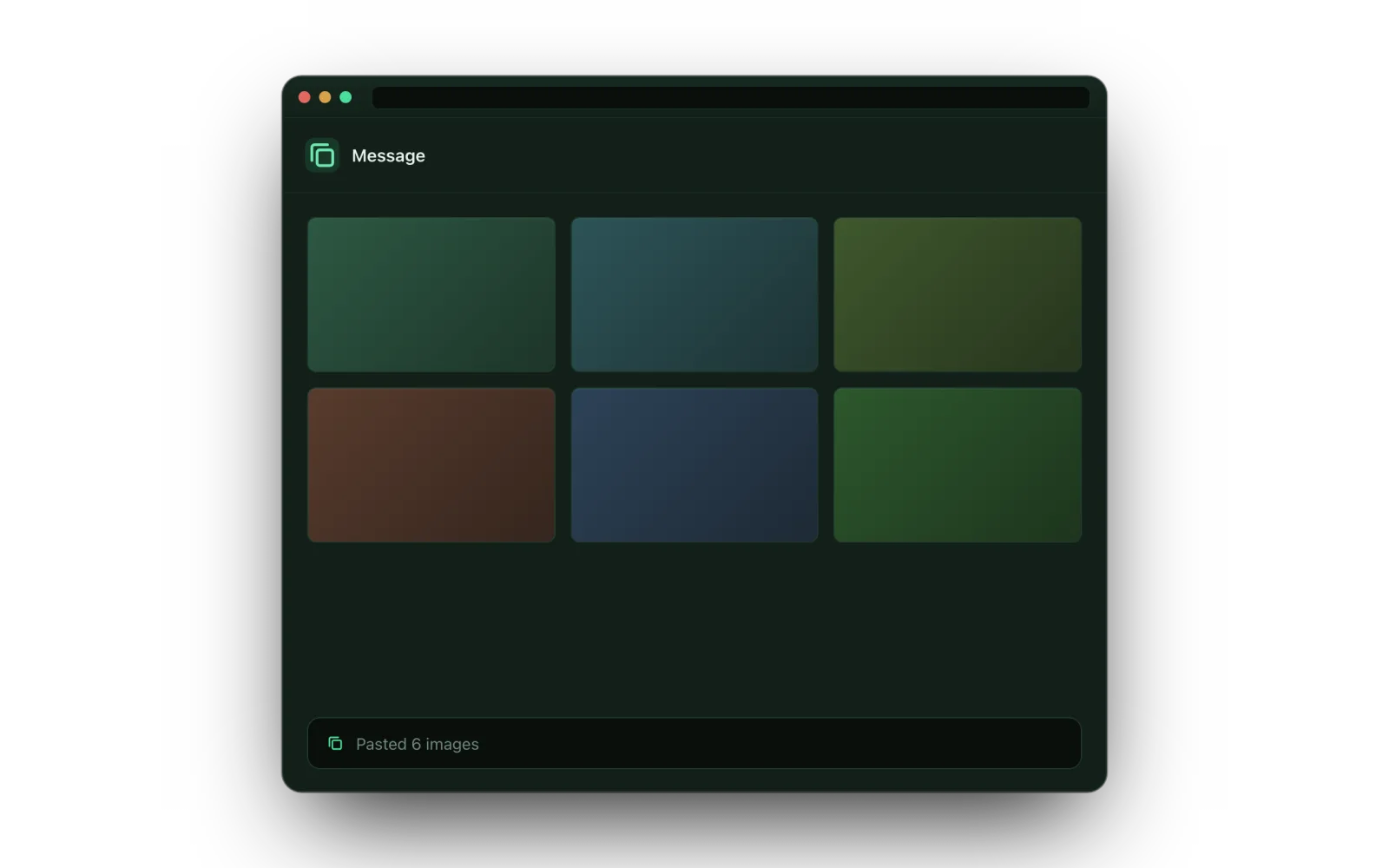
Nothing is uploaded to a third-party server on the way — the images go from your browser to your clipboard to Slack. There is no account to create, and the capture, grouping and one-paste share are all on the free plan.
Keeping them in one message instead of six
A detail worth knowing regardless of method: attach every image before you hit send. Slack groups all attachments on the current draft into a single message. If you send after each image, you get six messages and six notifications for your team, and the thread becomes hard to read.
If a screenshot needs a comment of its own, annotate it before sharing — an arrow or a labelled callout drawn on the image keeps the explanation attached to the picture instead of scattered through the channel.
Will they show inline, and how many fit in one message?
Whichever method you use, Slack displays each image as an inline preview in the message body rather than as a bare file link, provided the image is under 25,000 pixels on its longest side and under 45 million pixels in total. An ordinary screenshot is nowhere near either limit, so it renders in the message with no extra step.
Slack accepts up to 10 files in one message. If you have more than ten screenshots, send them as two messages, or combine the related ones into a single annotated image before sharing so the set stays under the cap.
Which method should you use?
- One-off, files already saved: Method 1. Nothing to install.
- Restricted machine, no extensions allowed: Method 2.
- You do this several times a day: Method 3. It removes the save-and-clean-up round trip entirely, which is where the time actually goes.
Six screenshots. One Cmd+V.
Stik bundles your shots in the side panel and pastes the whole set, in order.
Add to Chrome — Free