How to take a full-page screenshot in Chrome
Your system screenshot key only captures what fits on screen. Here are three ways to capture the whole scrolling page instead — and the reasons long pages come out broken.
Short answer: Chrome can already do it without installing anything. Open DevTools with F12, press Cmd+Shift+P (Ctrl+Shift+P on Windows), type screenshot, and choose Capture full size screenshot. It saves a PNG of the entire page.
Why Cmd+Shift+4 isn't enough
The macOS and Windows screenshot tools photograph the screen. They have no idea the page continues below the fold — to them, the browser is just a rectangle of pixels. Capturing a long article means scrolling, shooting, scrolling, shooting, and then stitching the pieces by hand in an image editor, usually with a duplicated navigation bar in the seams.
A full-page capture works differently: it asks the browser to render the whole document, including the part that is scrolled out of view, and returns that as one tall image.
Method 1 — DevTools, nothing to install
- Open the page you want to capture.
- Open DevTools: F12, or Cmd+Option+I on macOS.
- Open the Command Menu with Cmd+Shift+P / Ctrl+Shift+P.
- Type screenshot and pick Capture full size screenshot.
The same menu offers Capture area screenshot for a region and Capture node screenshot for exactly one element — handy when you want just a card or a table with no cropping.
The catch is friction. It is four steps and two keyboard chords for every capture, the file goes straight to your downloads folder under a machine-generated name, and DevTools has to be open, which changes the viewport width and can reflow a responsive layout before it is captured.
Method 2 — Print to PDF
Press Cmd+P and choose Save as PDF. This works in every browser, needs nothing installed, and produces a searchable document.
It is the wrong tool if you wanted an image. Print stylesheets often hide navigation, expand collapsed sections, or force a light theme, so the PDF is frequently not what you saw on screen. Page breaks slice through screenshots and tables. Use it for archiving a receipt, not for showing a colleague what a bug looks like.
Method 3 — Capture it in one click
An extension puts full-page capture on a single button, and skips the download round trip entirely.
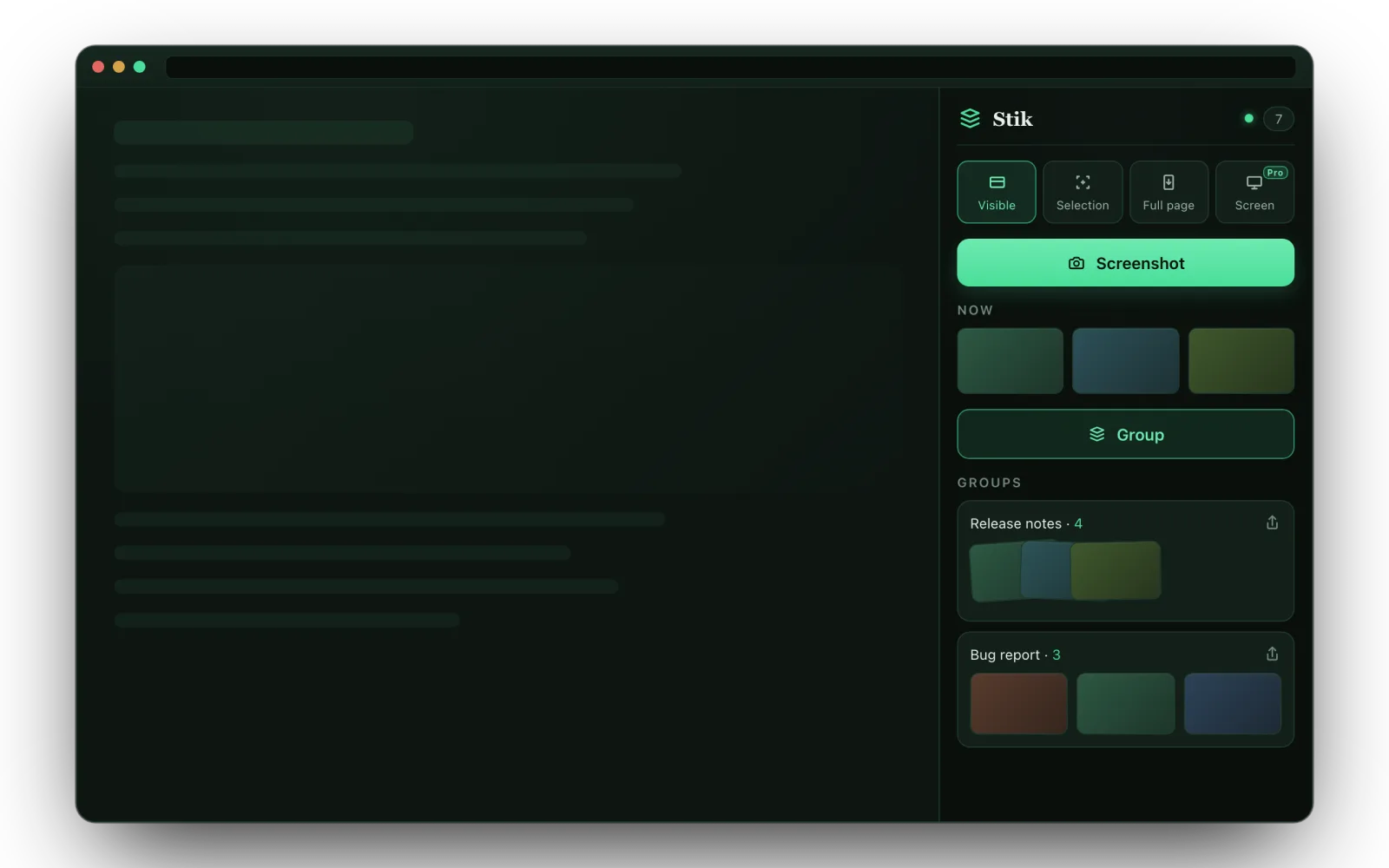
Stik lives in Chrome's side panel with four capture modes: the visible area, a dragged selection, the full scrolling page, and — on Pro — the entire screen including windows outside the browser. Full-page capture is on the free plan.
Where it differs from a plain capture tool is what happens next. Shots land in the panel rather than your downloads folder, several of them stack into one named group, and the whole group pastes into Slack, Notion or X with a single Cmd+V. Nothing is uploaded — the images stay in your browser's local storage.
Why long pages come out broken
Every full-page tool, built-in or not, hits the same handful of problems. Knowing them saves you a re-shoot:
- Lazy-loaded images. Pictures that only load when scrolled into view may be captured as blank boxes. Scroll to the bottom once, let everything load, then scroll back up and capture.
- Sticky headers. A navigation bar pinned with
position: fixedcan be painted repeatedly down the tall image. There is no fix from the capture side — the usual workaround is hiding that element in DevTools first. - Infinite scroll. A feed that loads more content as you scroll has no bottom, so "the whole page" is whatever happened to be loaded at capture time.
- Extremely tall pages. Browsers cap how large a single canvas can be. Past roughly tens of thousands of pixels the capture is truncated or comes back empty. Capture in sections instead.
- Sensitive content. A full-page capture takes everything — including the email address in the corner and the customer name in the sidebar. Blur it out before you send it.
Which method should you use?
- Once in a blue moon: DevTools. It is already installed and it is accurate.
- You need a document, not an image: print to PDF.
- Several times a day, and the shots get shared: an extension, because the time cost is in the saving, finding and re-uploading, not in the capture.
Full-page capture, free.
One click for the whole page. Annotate it, bundle it, paste it wherever you're typing.
Add to Chrome — Free